Sunday, April 7, 2013

HTML Style

Styling HTML with CSS

CSS was introduced together with HTML 4, to provide a better way to style HTML elements.
CSS can be added to HTML in the following ways:
  • Inline - using the style attribute in HTML elements
  • Internal - using the <style> element in the <head> section
  • External - using an external CSS file
The preferred way to add CSS to HTML, is to put CSS syntax in separate CSS files.
However, in this HTML tutorial we will introduce you to CSS using the style attribute. This is done to simplify the examples. It also makes it easier for you to edit the code and try it yourself.

Inline Styles

An inline style can be used if a unique style is to be applied to one single occurrence of an element.
To use inline styles, use the style attribute in the relevant tag. The style attribute can contain any CSS property. The example below shows how to change the text color and the left margin of a paragraph:
<p style="color:blue;margin-left:20px;">This is a paragraph.</p>

HTML Style Example - Background Color

The background-color property defines the background color for an element:

Example

<!DOCTYPE html>
<html>

<body style="background-color:yellow;">
<h2 style="background-color:red;">This is a heading</h2>
<p style="background-color:green;">This is a paragraph.</p>
</body>

</html>

The background-color property makes the "old" bgcolor attribute obsolete.

HTML Style Example - Font, Color and Size

The font-family, color, and font-size properties defines the font, color, and size of the text in an element:

Example

<!DOCTYPE html>
<html>

<body>
<h1 style="font-family:verdana;">A heading</h1>
<p style="font-family:arial;color:red;font-size:20px;">A paragraph.</p>
</body>

</html>

The font-family, color, and font-size properties make the old <font> tag obsolete.

HTML Style Example - Text Alignment

The text-align property specifies the horizontal alignment of text in an element:

Example

<!DOCTYPE html>
<html>

<body>
<h1 style="text-align:center;">Center-aligned heading</h1>
<p>This is a paragraph.</p>
</body>

</html>

The text-align property makes the old <center> tag obsolete.

Internal Style Sheet

An internal style sheet can be used if one single document has a unique style. Internal styles are defined in the <head> section of an HTML page, by using the <style> tag, like this:
<head>
<style type="text/css">
body {background-color:yellow;}
p {color:blue;}
</style>
</head>


External Style Sheet

An external style sheet is ideal when the style is applied to many pages. With an external style sheet, you can change the look of an entire Web site by changing one file. Each page must link to the style sheet using the <link> tag. The <link> tag goes inside the <head> section:
<head>
<link rel="stylesheet" type="text/css" href="mystyle.css">
</head>

HTML Script

The HTML <script> Element

The <script> tag is used to define a client-side script, such as a JavaScript.
The <script> element will be explained in a later chapter.

HTML head Elements

Tag Description
<head> Defines information about the document
<title> Defines the title of a document
<base> Defines a default address or a default target for all links on a page
<link> Defines the relationship between a document and an external resource
<meta> Defines metadata about an HTML document
<script> Defines a client-side script
<style> Defines style information for a document

HTML Style

The HTML <style> Element
T he <style> tag is used to define to style information for an html document.
Inside the <style> element you specify how html elements should render in a browser:
Example:
<head>
<style type="text/css">
body {background-color:yellow}
p {color:blue}
</style>
</head>

HTML Herad Section

The HTML <head> Element

The <head> element is a container for all the head elements. Elements inside <head> can include scripts, instruct the browser where to find style sheets, provide meta information, and more.
The following tags can be added to the head section: <title>, <style>, <meta>, <link>, <script>, <noscript>, and <base>.


The HTML <title> Element

The <title> tag defines the title of the document.
The <title> element is required in all HTML/XHTML documents.
The <title> element:
  • defines a title in the browser toolbar
  • provides a title for the page when it is added to favorites
  • displays a title for the page in search-engine results
A simplified HTML document:
<!DOCTYPE html>
<html>
<head>
<title>Title of the document</title>
</head>

<body>
The content of the document......
</body>

</html>

The HTML <base> Element

The <base> tag specifies the base URL/target for all relative URLs in a page:
<head>
<base href="http://www.w3schools.com/images/" target="_blank">
</head>

The HTML <link> Element

The <link> tag defines the relationship between a document and an external resource.
The <link> tag is most used to link to style sheets:
<head>
<link rel="stylesheet" type="text/css" href="mystyle.css">
</head>
HTML Links

HTML links needed any page. Html links use very easy. You can easily this tag page in anywhere.
This tag defines <a>.
Example:
-<a href="softandweb.blogspot.com">This is html link. Go to the page </a>

HTML Formatting

Formatting tag is very needed for every page. This tag use for fonts tag.
Example:
<b> Defines bold text
<em> Defines emphasized text 
<i> Defines a part of text in an alternate voice or mood
<small> Defines smaller text
<strong> Defines important text
<sub> Defines subscripted text
<sup> Defines superscripted text
<ins> Defines inserted text
<del> Defines deleted text

HTML Paragraphs Tag

Paragraphs tag is very needed in html page. Paragraphs tags defined <p> tag.
Example:
<p>This is a paragraph tag</p>

HTML Comments

Html comments is very interested tag. Comments tag show the page never. Comment use html page very easy and you could many advantages.
Example:
-<!--Hello world-->

HTML Headings

Headings are defined with the <h1><h6 tags.
<h1>defines the most important heading. <h6> defines the least important heading.
Example:
- <h1>This is a heading<h1>
- <h2>This is a heading<h2>
- <h3>This is a heading<h3>

Friday, April 5, 2013

How to start html?

To start note pad go to:

Step-1:

Start
      All Programs
           Accessories
                  Notepad

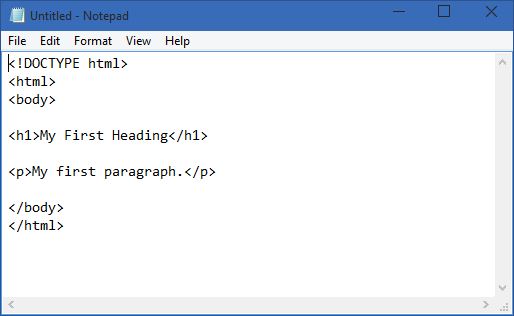
Step-2:

Edit html with notepad: 


Step-3:

Save your html:

Select save as on notepad. When you save an HTML file, you can use either the .htm or the .html file extension. There is no difference, it is entirely up to you.


Step-4:

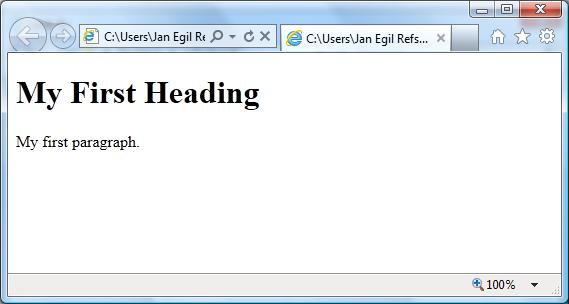
 Run the html in your browsers:

Start your web browser and open your html file from the File, Open menu, or just browse the folder and double-click your HTML file.
The result should look much like this:

Html Editors

You can easily html edit and making various software. Html can be edited by using a professional html editor like:

- Microsoft expression web
- coffee cup html editor
- Dreamweaver

Needed Learn for html

Don't needed for first time html editor or server or website. You can use simple editor widows default editor text pad or notepad. You can learn easily use notepad. This is good way for learn html. Though professional developer use dreamweaver or front page big html editor. Primarily you must be use notepad others not alternative for good learn.

Please you use:
- Notepad
- Text pad
- Npp(note pad plus plus) This is a simple software. Here have no suggest tag. So you can use.

What is html?

Html is a web language. This language show every browsers. You can create web site via html code. Html code so easy from others language. Html full means (Hyper Text Markup Language). Actually it is not proper programming language. Any website details show for web structure and show everything as text image and etc and use here html tag.  More..

Thursday, April 4, 2013


Dreamweaver Free Download Full Version


- Dreamweaver most important software for web developing.
- It's need for every developer.
- This is full versions software.
- You can free download easily.
- Only one click download.
- Just download button click then will start download.


Tuesday, April 2, 2013

Opera


Opera Browser 2013


Its main features are:
    Opera adalah browser untuk komputer berkecepatan tinggi. Halaman dan tab memuat lebih cepat, bahkan pada koneksi internet yang lambat.

    Opera memeriksa situs berisiko, memperingatkan Anda untuk ancaman potensial. Juga Opera pengaturan privasi membiarkan Anda surfing web tanpa dilacak.